
Introduction: Why Tech Packs Matter in Fashion Product Development
Creating an accurate and detailed tech pack is one of the most critical steps in modern apparel and product development. Whether you’re launching your own brand or managing established collections, a clear, well-structured tech pack ensures everyone in the supply chain—designers, patternmakers, manufacturers, and quality controllers—stays on the same page. This step-by-step guide reveals how to create a tech pack in Excel (free template download included!) and why mastering this process can reduce errors, miscommunication, and costly surprises.
The Essentials: What Is a Tech Pack?

A tech pack (technical package) is a comprehensive document that lays out every detail needed to turn a design idea into a finished product. Typically, the tech pack is the “blueprint” product developers give to their manufacturers. Using an Excel template streamlines the process, making version control, edits, and information sharing faster—especially for startups and independent teams.
How to Create a Tech Pack in Excel (Free Template Download)
Our downloadable Excel template provides the structure for your entire tech pack. In this section, learn exactly how to fill it out and customize each sheet for your product. Download your copy and follow along, adjusting columns and tabs for your unique needs and team workflow.
Free Template Structure Overview
- Cover Sheet: Project name, season, version, contact details
- Technical Sketches (Flat Drawings)
- Bill of Materials (BOM)
- Measurement Chart
- Construction Details & Stitching
- Colorways & Artwork
- Labeling & Packaging Instructions
- Sample Tracking
Step-by-Step: Setting Up Your Excel Tech Pack File
Before you start, create a dedicated folder and naming system for your tech packs. Make sure the Excel file is editable, with all sheets accessible to relevant team members. Organize your sheets as outlined above, and lock formulas or reference cells to avoid accidental changes.
Cover Sheet: Product Overview & Contacts
The cover sheet introduces your tech pack. Include the garment name, style number, season, company logo, key contact information (designer, tech developer, merchandiser), and version history. That way, factories can always reach the right person if questions arise.
Technical Sketches: Communicating Your Vision
A picture is worth a thousand words in product development. Include clean flat sketches (front, back, and detail views) to visually communicate construction. Insert clear .JPG or .PNG files directly into your Excel tech pack sheet or provide links to high-quality images stored in the cloud.
Add Annotation Callouts
Label construction points (pockets, topstitching, trims), hem finishes, or special details clearly on the sketch with callouts, arrows, or text boxes. This prevents critical specs from being overlooked during manufacturing. For more on hem types, see How to Sew a Perfect Hem: Rolled, Blind, Coverstitched on Apparel Wiki.
Bill of Materials (BOM): Listing Every Component
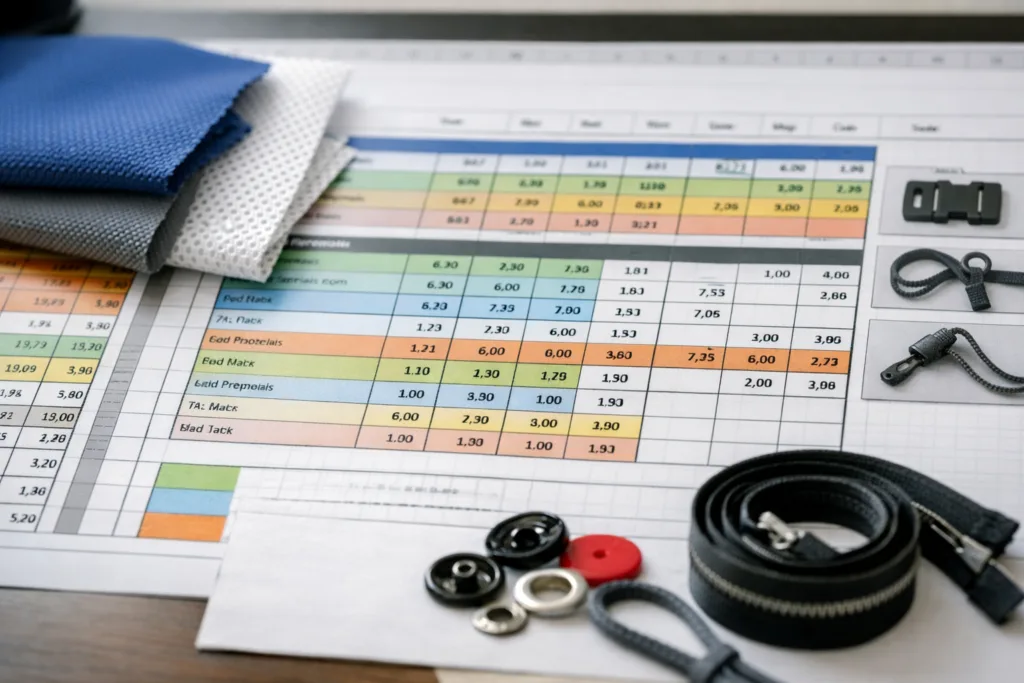
Your BOM sheet ensures every material, trim, and component is listed, reducing confusion and delays. For each item, include: description, supplier info, color, size, width, article number, and usage (where on garment). For beginners, think of it as your garment’s recipe list.
Measurement Chart: Getting Fit Right from the Start
Accurate measurements minimize costly fit problems down the line. Use Excel’s columns to list every Point of Measurement (POM), size breakdown (XS–XL or numeric), sample sizes, and tolerances. For fit accuracy tips, check Apparel Wiki’s guide: How to Measure a Garment: 9 Key POMs and Pro Tips for Perfect Fit.
How to Add or Edit Points of Measure
Don’t hesitate to customize the template—add rows for unique measurements, or merge cells for notations on special shaping (like curved hems or dropped shoulders). Consistency ensures factories understand your fit expectations.
Colorways & Artwork: Managing Colors and Prints
Clarity in color and print specs prevents mismatches. For each colorway, list:
- Pantone/Color code
- Print files or placements (link to digital files if needed)
- Trim and stitching color details
Consider referencing colorfastness requirements to support your color specs, drawing on best practices from Colorfastness Tests in Apparel.
Construction Details: Instructions for Factory Assembly
This key section explains the exact construction methods—seam types, topstitching, hemming (e.g., bias tape, overlock), inside finishes, and sewing thread choices. For stitches, reference the correct SPI (stitches per inch), seam allowance, and any special machinery. Describing construction visually with small diagrams or callouts in Excel can reduce errors.
Labelling, Packaging, and Shipping Instructions
Clear instructions for placement and specifications of care labels, branded neck tags, hangtags, folding requirements, polybags, and carton marking minimize logistical mistakes. Use checklist boxes or simple tables in Excel to show required packaging elements for each style or delivery batch.
Sample & Approvals Tracking Sheet
Tracking proto, fit, and pre-production sample approvals is crucial. Add columns for sample type, date sent, feedback, approval status, and revised delivery dates. This record reduces confusion across sourcing, quality, and production teams.
Version Control & Change Logs
Every edit or update should be reflected in a controlled “change log.” In Excel, set up a small section listing the date, what changed, who approved, and when the new version was circulated. This audit trail helps clarify which details the manufacturer should follow and avoids outdated information on the factory floor.
Customizing Your Tech Pack Template
Don’t be afraid to adapt your template as your knowledge grows. Add sheets for sustainability specs, additional fit comments, or inspection checklists—whatever fits your product’s unique story. For complex garments, consider adding reference tabs for stitching diagrams or grading rules, inspired by resources like Grading Rules: How Sizes Expand from a Base Pattern.
Common Mistakes When Creating a Tech Pack in Excel
- Omitting small but crucial details (labels, thread color, zipper type)
- Lack of clear visuals or missing measurements
- Neglecting to update the version control log
- Unclear file naming conventions
To avoid costly slip-ups, review your document before sending it out and have another team member check for clarity.
Troubleshooting: Overcoming Tech Pack Challenges in Excel
Version Control Issues
Solve file confusion by implementing a simple versioning code (e.g., StyleNumber_V02) and restricting edit permissions to designated team members.
Formatting and Clarity Hurdles
Use consistent fonts, align columns, and color code tabs for easy navigation. Make sure all content is viewable when printing or exporting to PDF for suppliers.
Communication Gaps with Manufacturers
If a question arises, clarify with annotated comments or brief instructions below each section. Confirm with your factory that all visuals and notes are visible and accessible.
Tips for Professional-Looking Tech Packs in Excel
- Insert gridlines and borders for organized tables
- Use conditional formatting to highlight urgent notes
- Lock header rows so key details remain visible
- Attach external links for large artwork or files that Excel can’t host directly
Should You Use Google Sheets or Excel for Your Tech Pack?
Excel offers robust offline editing, advanced formulas, and compatibility with most factory systems. Google Sheets works well for real-time collaboration and easy link sharing. Choose based on your team’s workflow and factory preferences.
Transitioning from Manual to Digital Tech Packs
Startups often shift from handwritten or ad hoc specs to formalized Excel tech packs as product complexity grows. This provides consistency, helps with quality audits, and reduces costly mistakes as production scales.
When to Upgrade: Excel vs. Specialized Tech Pack Software
Excel works for most SME brands and designers. But for collections with hundreds of styles or advanced trim libraries, migrating to dedicated PLM tools can save time and support multi-user version control. Decide based on your company’s size, supplier needs, and budget.
Industry Standards for Tech Packs: What Do Factories Expect?
Manufacturers expect concise, unambiguous instructions, all measurements in standard units (cm/inch), and professionally presented visual references. Excel templates that follow Apparel Wiki editorial guidelines help suppliers work more efficiently and identify errors early.
How to Communicate with Your Supplier Using the Tech Pack
Always send your completed tech pack as an unprotected Excel file (for editable comments) and PDF (for reference). Schedule a review call before the first prototype to clarify any unique requirements or construction questions.
How to Update and Maintain Your Tech Pack
Update your tech pack every time a detail, material, or size changes. Use “Track Changes” features in Excel or maintain a change log to keep stakeholders informed. Never delete old versions—archive them for reference.
Pitfalls to Avoid in Tech Pack Communication
- Avoid ambiguous terms like “regular seam” or “standard trim”—specify fabric types, seam allowances, or brand-specific code numbers
- Don’t rely on verbal instructions—only what’s clearly written in the tech pack is contractually reliable
For a deeper look at mistakes to avoid, see 8 Critical Insights: Tech Pack vs. Spec Sheet – Avoid Costly Manufacturing Mistakes Today.
How to Create a Tech Pack in Excel (Free Template Download): Final Checklist
- Cover sheet filled out
- Technical sketches and notes in place
- All BOM and trims listed
- Measurement chart complete with tolerances
- Colorway/artwork specs clear
- Labeling and packing instructions included
- Version log up-to-date
Conclusion: Confident Development Starts with a Clear Tech Pack

Mastering how to create a tech pack in Excel gives designers and developers more control, reduces costly factory errors, and supports on-time deliveries. A well-structured Excel template means less back-and-forth, faster approvals, and reliable production. Adapt your template as your business evolves—and remember, clear visuals and detailed specs are your secret weapons for scaling fashion ideas into successful products!
Frequently Asked Questions
What is the difference between a tech pack and a spec sheet?
A tech pack is a comprehensive document including design, materials, measurements, and instructions, while a spec sheet focuses mainly on measurements and size specs. For a deep dive, see the critical differences guide on Apparel Wiki.
Can I use the same tech pack template for different product types?
Yes, but always customize sections for unique details—like stretch fabrics, special trims, or child safety standards—based on the product.
How detailed do measurement charts need to be?
Every key measurement point should be listed for each size, with as little ambiguity as possible, ensuring consistency between samples and bulk production.
What’s the main advantage of Excel over handwritten or PDF tech packs?
Excel allows easy editing, updates, and sharing, and can be customized with formulas for grading or costing; it’s also widely accepted in the industry.
Do manufacturers prefer Excel or other formats for tech packs?
Factories commonly accept both Excel and PDF formats. Choose the format your manufacturing partners are most comfortable with and ensure critical data is accessible.
Where can I find more examples or advanced tips for tech pack creation?
Explore in-depth guides on Apparel Wiki, which cover everything from measurement charts to detailed breakdowns of tech pack anatomy and common manufacturing pitfalls.
Related Reading
- Master Your Process: The Ultimate Tech Pack Section-by-Section Handbook
- Essential Tips: Navigate Manufacturing with the Complete Tech Pack Guide
- 9 Pro Secrets to Measuring Garments for Perfect Fit
- Tech Pack vs. Spec Sheet: Avoid the 8 Most Expensive Mistakes
- The Fast Track to Building an Accurate Garment Measurement Chart