Introduction: Why Adobe Illustrator Is a Game-Changer for Fashion Design
Adobe Illustrator for Fashion Design: Essential Tools unlocks the powerful capabilities designers need to create stunning garment illustrations, technical flats, and original pattern designs. Whether you’re preparing a collection for production or expressing creative concepts, Illustrator’s features—like the Pen Tool, Color Guide, and robust layers—can transform your workflow and output. This article breaks down the most indispensable tools, shares hands-on tips, and guides beginners and experienced designers alike to drive better results within the apparel industry.
Understanding Adobe Illustrator’s Interface for Fashion Designers

One of the first steps in tackling Adobe Illustrator for Fashion Design is learning the interface. From the workspace to artboards and tool panels, mastering navigation can speed up sketching and editing. Clean lines, swatches, and customizable toolbars are especially vital when working on garment illustrations. Lighting up the workspace with well-organized panels helps designers see their work clearly and efficiently manage multiple design elements.
Setting Up Your Illustrator Workspace for Apparel Projects
Configuring your workspace is crucial in Illustrator, especially when handling technical flats or print designs. Use custom artboards for each garment or accessory, and arrange your tool panels so essentials like the Pen Tool and Color Guide are always within reach. Save workspace setups to streamline repeated tasks—this tiny habit can shave off hours in complex collection development.
The Pen Tool: Precision Sketching for Garment Design
The Pen Tool remains the industry favorite for sketching garment outlines and technical flats. It allows for crisp, controlled curves—perfect for intricate stitching details or bold silhouette definitions. Unlike raster-based tools, vector lines drawn with the Pen Tool are scalable and editable, making them ideal for production-ready artwork. Apparel Wiki editors often recommend learning shortcut keys for the Pen Tool to accelerate workflow and minimize errors.
How to Create Technical Flats in Adobe Illustrator
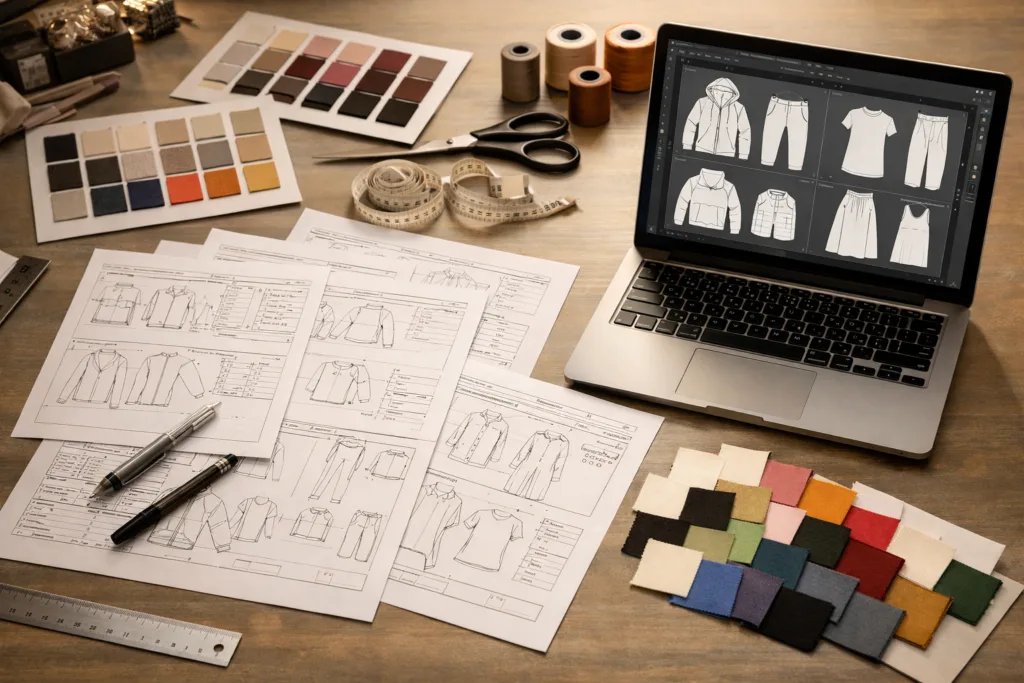
Technical flats are fundamental in fashion design, representing garments clearly for pattern-makers and manufacturers. Use layers to separate construction features (seams, stitches, labels), and build shape outlines with the Pen Tool. Apply strokes and fills to distinguish design details—like topstitching or pocket placement. For a deeper dive on integrating technical information, see resources like Apparel Wiki.
The Shape Tools: Quick Construction of Patterns and Components
Shape tools (Rectangle, Ellipse, Polygon) help block out major portions of garments—such as sleeves, collars, or button placements—before refining with editing tools. For pattern design, these shapes provide a structural starting point before customizing for fit and style. Combine shift-drag shortcuts and Pathfinder operations to perfectly merge or subtract elements.
Layer Management: Organizing Complex Garment Projects
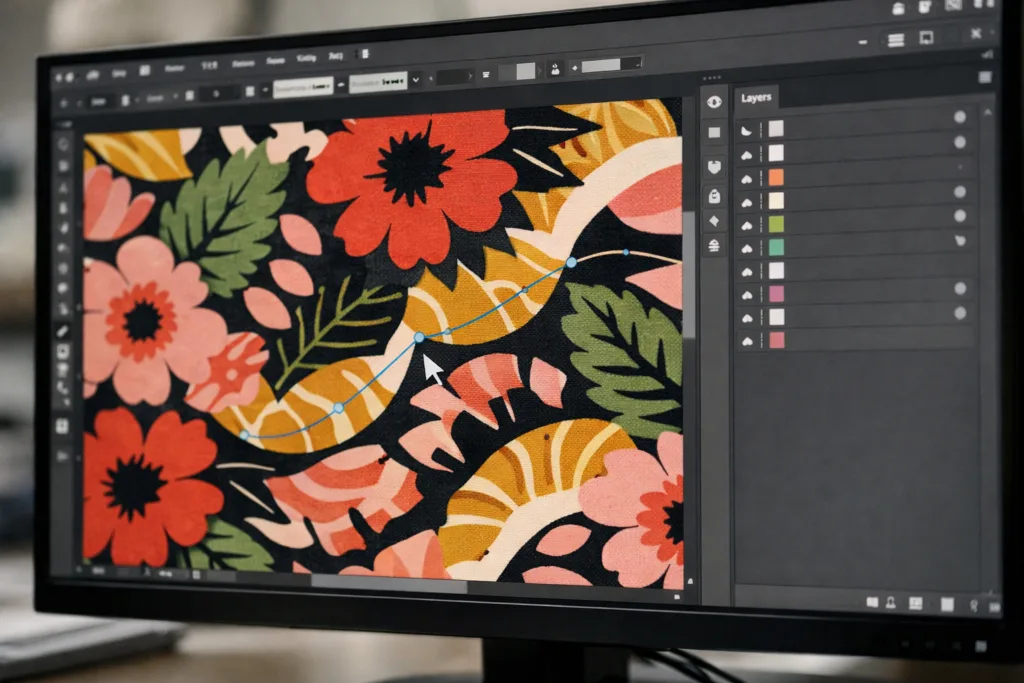
Effective layer management can make or break your workflow. Separate design details onto different layers (e.g., main outline, stitching, trims, text annotations). This approach aids in rapid revisions and prevents misplaced elements. Locking and hiding layers is especially helpful when drafting technical flats or planning intricate textile prints.
Color Guide and Swatches for Textile Prints
Choosing colors is a key step in fashion design. Use Illustrator’s Color Guide to develop harmonized palettes, ideal for textile prints and seasonal collections. Swatches can store Pantone colors or custom blends, making it easier to ensure consistency across production files. Efficient color management prevents errors and supports accurate cost forecasting, as discussed in developing a target price strategy.
Brushes and Textures: Enhancing Fashion Sketches
Brushes go beyond basic lines, offering textured effects for denim, knits, or fur. Custom brushes let you recreate realistic fabric surfaces within sketches. Try scatter or pattern brushes to illustrate print repeats or garment details like embroidery. Layering brush strokes can build volume and depth in both concept and tech sketches.
Patterns and Repeat Tools: Designing Seamless Textile Prints
Illustrator’s pattern creation tools simplify the process of designing seamless repeats for fabric prints. Use the Pattern Maker to test colorways and repeat scales instantly. These tools are essential for developing professional textile prints and communicating clearly with fabric suppliers or converters. Read more about fabric calculations in fabric consumption calculation.
Live Paint Tool: Mapping Colorways Quickly and Accurately
Fashion collections demand multiple colorways. The Live Paint Tool lets you fill outlines fast and preview design changes. This speeds up the process of presenting options to buyers or updating trend-driven collections. Organize color layers for quick export and use for BOM listings, explained further in listing colors and colorways in BOM.
Pathfinder: Shaping and Combining Complex Design Elements
Pathfinder tools help merge, subtract, or intersect shapes. This is essential when building multi-layered garment details (like panelled dresses or jacket collars) without manual editing. Compound paths keep construction features clean, ensuring technical accuracy in flats and patterns. Aligning shapes precisely supports error-free manufacturing specs.
Effects and Filters: Creating Unique Surface Designs
Utilize effects like Drop Shadow, Outer Glow, or Scribble for visual impact in concept artwork. Subtle filters add depth, while more dramatic effects simulate fabric treatments or digital prints. Used wisely, effects can elevate presentation boards and catch the eye of buyers or design managers.
Typography and Labels: Clarity in Apparel Specs
Technical flats need clear typography for sizing, care instructions, and construction notes. Adobe Illustrator’s text tools allow you to create spec sheets with annotations. Use smart guides for text alignment—this ensures readability and helps avoid costly mistakes in manufacturing communication. Explore the connection between spec sheets and hidden manufacturing costs in hidden costs in apparel manufacturing.
Working with Templates and Libraries: Speeding Up Collection Development
Reusable templates and asset libraries cut design time and keep work organized. Save flats and pattern components for future projects, with names and versions tracked for easy access. For teams, shared libraries maintain consistency across design seasons. Libraries can also include technical markers and label placements for efficient production planning.
Exporting Artboards: Seamless Production Handoff
Exporting multiple artboards in PDF or AI formats is essential for communicating with pattern makers, factories, or buyers. Export options support layered exports for editable files or flattened images for quick references. Clean, well-organized files ensure fewer misunderstandings and pave the way for accurate manufacturing, especially important for sample review and quality steps outlined on Apparel Wiki.
Tips for Creating Fashion Collections in Illustrator
Successful fashion collections start with strategic organization. Use Illustrator’s artboard tools to manage multiple looks, styles, or colorways on a single document. Group related garments and utilize versions to track seasonal changes. Batch export, color guides, and efficient layer management facilitate a smooth transition from design to tech pack creation.
Using Illustrator for Pattern Design and Grading
Pattern designers rely on vector precision for creating base slopers and graded sizes. Illustrator supports digital grading methods and pattern block creation, with tools for scaling and adjustment accuracy. Apparel Wiki cautions designers to double-check measurement consistency when transferring patterns for production, reducing risk of costly fitting errors.
Smart Annotation: Communicating Specs and Construction Details
Clear annotation is vital in the apparel industry. Use arrows, callouts, and color cues to indicate seam directions, stitch types, and fit points. Illustrator’s annotation tools help designers relay comprehensive details—ensuring factories understand expectations and avoid mistakes. Enhanced communication leads to better quality assurance.
Integrating Illustrator Files With BOM and Tech Pack Systems
Design files in Illustrator often feed directly into BOM (Bill of Materials) and Tech Packs. Connect layers and color codes to material listings and trim specifications for streamlined tracking. Systemized handoff supports cost analysis and aids in predicting landed duty paid costs. For examples, explore LDP cost analysis in garment manufacturing.
Batching Tasks: Illustrator’s Powers for Team Collaboration
Batch processing—such as group exporting, color application, or template reuse—saves time and aids team communication. Illustrator’s asset libraries and batch tools let designers keep multiple files organized and accessible. Efficient teamwork reduces human error and drives rapid collection development.
Common Pitfalls When Using Illustrator for Fashion Design
Some frequent mistakes include neglecting proper layer organization, misaligning technical details, or exporting files with missing design elements. Avoid these pitfalls by routinely checking file setups, locking critical layers, and documenting changes. Apparel Wiki’s editorial team suggests establishing project checklists to prevent costly errors.
Best Practices for Textile Print Production with Illustrator
Textile print production demands precise repeat layouts and color management. Use Illustrator’s pattern tools, swatches, and export options to deliver clear, ready-for-print files. Communicate with fabric converters about file specs, repeat sizes, and color accuracy to optimize yield and minimize waste.
Advanced Illustrator Techniques for Experienced Designers
Seasoned designers can leverage custom scripts, plug-ins, and advanced Path editing for complex garment construction. Utilize envelope distort and mesh tools for dynamic, 3D-inspired sketches. Explore automation in batch exports and style guide creation to scale up line development efficiently.
Apparel Wiki’s Editorial Tip: Deciding When to Use Illustrator vs. Other Design Tools
While Adobe Illustrator excels at technical flats, vector graphics, and pattern creation, sometimes other tools are better for photo-realistic renderings or 3D draping. Apparel Wiki recommends assessing the end-use—choose Illustrator for clean outlines and manufacturing clarity, and supplement with other programs for 3D visualization or CAD patterning when necessary.
Adobe Illustrator for Fashion Design: Essential Tools
Adobe Illustrator for Fashion Design: Essential Tools embodies all elements crucial for apparel and textile creation. By mastering the Pen Tool, Color Guide, layer management, and advanced pattern functions, designers streamline their workflow and ensure production-ready assets. The platform supports every phase of collection development, from initial sketching to BOM integration and spec annotation—a must-have for modern apparel professionals.
Conclusion: Practical Insights for Success in Apparel Design
Harnessing Adobe Illustrator for Fashion Design equips designers with powerful vector tools, smart color management, and seamless collaboration features. By focusing on precision drawing, organized layers, and export-ready formats, professionals can minimize errors, optimize production, and confidently deliver inspiring collections to market. The essential tips and tools discussed in this article ensure your design journey is both creative and commercially effective.
Frequently Asked Questions
What is the best tool in Adobe Illustrator for sketching fashion designs?
The Pen Tool offers unrivaled precision for sketching garment outlines, technical flats, and intricate design details.
How can I create seamless textile prints in Adobe Illustrator?
Use the Pattern Maker and repeat tools to design seamless prints, testing colorways and scales for production accuracy.
Why is layer management important in fashion illustration?
Proper layer organization keeps garment details separated, streamlines revisions, and reduces errors in manufacturing handoffs.
Can Adobe Illustrator be used for pattern grading?
Yes, Illustrator’s vector tools allow accurate scaling and grading of base patterns for different garment sizes.
What tips help organize multiple garments in one Illustrator file?
Utilize artboards, group related styles, and separate colorways to keep your collection organized and export-ready.
How do I add fabric textures to garment sketches?
Use custom brushes and texture effects to simulate fabric surfaces, balancing realism with presentation clarity.
Related Reading
- Mastering Apparel Price Strategy in Your Collection Planning
- Fabric Consumption Calculation: Save Money and Reduce Waste
- Uncovering Hidden Costs in Apparel Manufacturing
- How to List Colorways for Better BOM Accuracy
- Apparel Manufacturing Tools for Smarter Design Decisions
- Landed Duty Paid Analysis: Boost Your Margin